
How to Create an IPTV Playlist: Complete Irish Guide 2025
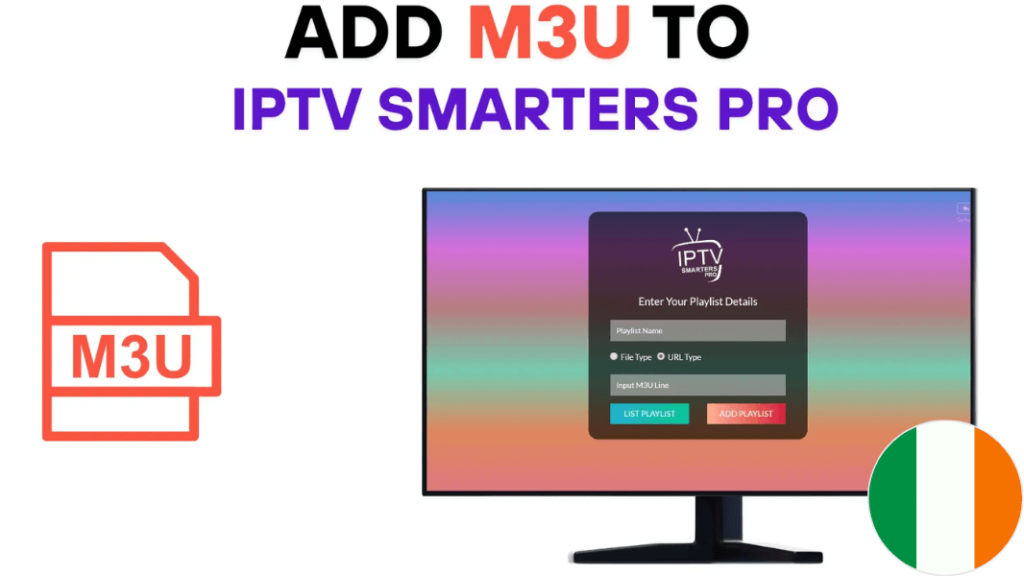
Understanding how to create an IPTV playlist empowers Irish viewers to organise their streaming channels efficiently and customise their viewing experience. Moreover, creating personalised playlists allows you to combine channels from multiple sources, arrange content by preference, and streamline navigation through large channel collections. Therefore, this comprehensive guide explains playlist formats, creation methods, and best practices for Irish IPTV users.
Understanding IPTV Playlist Creation
Creating an IPTV playlist involves compiling streaming channel URLs into a structured text file that IPTV players can read and display. Essentially, these playlists use the M3U format, a simple text-based standard originally developed for audio files but now widely adopted for internet television. Furthermore, M3U playlists contain channel names, streaming URLs, logos, and optional metadata that enhance your viewing interface.
The M3U format uses plain text with specific syntax that IPTV applications interpret. Additionally, the extended M3U format (M3U8) supports additional features like channel grouping, electronic programme guide integration, and custom attributes. Understanding this structure helps you create functional playlists tailored to your preferences.
Irish viewers create playlists for various reasons. Some combine free-to-air Irish channels with international content. Others organise extensive channel collections into manageable categories. Moreover, custom playlists eliminate unwanted channels from provider-supplied lists, reducing clutter and improving navigation efficiency.
How IPTV Playlist Structure Works
M3U playlists follow a straightforward structure that’s easy to understand once you learn the basics. Initially, every M3U file begins with the header “#EXTM3U” which identifies the file format to compatible players. Then, each channel entry consists of two lines: an information line and a URL line.
The information line starts with “#EXTINF:” followed by duration (typically -1 for streams), then channel metadata. Furthermore, this metadata includes the channel name and optional attributes like logo URLs and group assignments. The URL line immediately follows, containing the actual streaming address.
Here’s a simple example structure: The header declares the file type, followed by channel information and streaming URLs. Additionally, you can include multiple channels by repeating this pattern throughout the file. Each channel needs its information line and corresponding URL.
Advanced playlists incorporate additional features. Group titles organise channels into categories like “Irish Channels,” “Sports,” or “Entertainment.” Moreover, logo URLs display channel icons in compatible players, whilst EPG attributes link electronic programme guide data for schedule information.
The syntax requires precision. Therefore, missing quotation marks, incorrect spacing, or malformed URLs prevent channels from loading properly. However, the basic structure remains consistent across all M3U playlists regardless of complexity.
Creating IPTV Playlists in Ireland
Irish users have several methods for creating custom IPTV playlists. First, you can create playlists manually using any text editor like Notepad on Windows or TextEdit on Mac. This method provides complete control over every playlist element. Additionally, manual creation helps you understand playlist structure thoroughly.
Alternatively, online playlist generators simplify the process through user-friendly interfaces. These tools allow you to input channel information through forms, then automatically generate properly formatted M3U files. Moreover, generators reduce syntax errors that commonly occur with manual creation.
Some IPTV management applications include built-in playlist editors. Furthermore, these programmes provide visual interfaces for adding channels, assigning groups, and testing streams before finalising playlists. Popular options include IPTV Editor and M3U Playlist Creator.
For Irish viewers combining multiple sources, playlist merger tools prove invaluable. These applications combine separate M3U files into single organised playlists. Additionally, they remove duplicate entries and standardise formatting across different source files.
The Data Protection Commission at dataprotection.ie provides guidance about online privacy and data handling relevant when using playlist creation tools. Understanding these protections helps you choose reputable tools that respect your information.
Step-by-Step Playlist Creation Guide
Follow these detailed steps to create your custom IPTV playlist:
Step 1: Open a plain text editor on your computer. Use Notepad (Windows), TextEdit (Mac set to plain text mode), or any code editor like Notepad++. Avoid word processors like Microsoft Word as they add formatting that breaks M3U files.
Step 2: Type the M3U header on the first line: #EXTM3U. This declares your file as an M3U playlist. Then, press Enter to move to the next line.
Step 3: Add your first channel information line. Type #EXTINF:-1, followed by the channel name. For example: #EXTINF:-1,RTÉ One. The -1 indicates continuous streaming without time limits.
Step 4: Press Enter and add the streaming URL on the next line. This URL must be the direct stream address provided by your IPTV source. Ensure you copy the complete URL without extra spaces.
Step 5: Add optional attributes to enhance your playlist. Include logo URLs using tvg-logo=”URL” and group titles using group-title=”Category Name”. Place these before the channel name in the information line.
Step 6: Repeat steps 3-5 for each additional channel. Maintain consistent formatting throughout your playlist. Moreover, organise channels logically to simplify future editing and navigation.
Step 7: Save your file with the .m3u extension. Choose “All Files” as the file type in your text editor to prevent automatic .txt extension addition. Name your file descriptively, like “IrishChannels.m3u”.
Step 8: Test your playlist by loading it into an IPTV player. VLC Media Player works excellently for testing on computers. Additionally, most mobile IPTV apps allow playlist importing for testing.
Step 9: Verify that all channels load correctly. Check channel names display properly and streams play without errors. Furthermore, confirm logos appear if you included them.
Step 10: Edit and refine your playlist based on testing results. Remove non-working channels, adjust channel order, and correct any formatting errors. Then, save your updated version.
Essential Tips for Better Playlists
Optimising your IPTV playlist improves usability and maintenance efficiency. First, establish consistent naming conventions for channels. Use standard names that clearly identify content, avoiding abbreviations that might confuse you later.
Organise channels into logical groups from the start. Furthermore, categorising by content type (news, sports, entertainment) or region (Irish, UK, international) makes navigation significantly easier. Most IPTV players display these groups as separate sections.
Include channel logos whenever possible. Visual icons dramatically improve browsing experience compared to text-only lists. Moreover, many players can automatically fetch logos if you provide correct channel identifiers.
Test stream URLs regularly as they can become outdated. Additionally, maintain backup copies of your playlists to prevent data loss. Consider using cloud storage or multiple local copies for important playlist files.
Document your playlist sources and creation dates. Therefore, when streams stop working, you’ll know where to find replacements or updated URLs. Comments in M3U files (lines starting with #) help you add notes.
Keep playlists manageable by removing channels you never watch. Smaller files load faster and make finding desired content easier. Furthermore, you can maintain separate playlists for different purposes rather than one massive file.
Validate your playlist formatting using online M3U validators. These tools identify syntax errors that might prevent proper loading. Additionally, validation before importing saves troubleshooting time later.
Consider using URL shorteners cautiously. Whilst they make playlists more readable, shortened URLs can break if the shortening service discontinues. Therefore, preserve original URLs when possible.
Stay informed about Irish streaming regulations and copyright requirements. Only include streams from sources where you have legal access rights. Moreover, respecting content licensing protects you from potential legal issues.
Finally, join Irish IPTV communities for tips and troubleshooting help. Online forums and social media groups offer valuable insights from experienced users. Additionally, community members often share working channel sources and playlist optimisation techniques.
Conclusion
With the right approach, you can easily master how to create an IPTV playlist in Ireland and customise your streaming experience perfectly. Understanding M3U format structure, using appropriate creation tools, and following systematic processes ensures functional, well-organised playlists. Remember to test thoroughly, maintain regular updates, and organise content logically for the best viewing experience. Take time to experiment with different formats and features until you develop playlists that match your exact preferences and viewing habits.